Getting Connected
TouchMaster Connect's original online service shut down years ago. This is an independent revival - to get your DS talking to it, two things need to be true: your game needs a small patch, and your DS needs to know where to find our server instead of Nintendo's dead one.
Before anything else: patch your ROM
1. Download the patcher: touchlink_patcher.exe
2. Run it, then either drag your ROM file onto it or use the file picker that opens to select it
3. It saves a new, patched copy next to your original (named
<yourrom>_touchlink.nds) - your original file is never modified
The patcher just points the game at our server instead of the closed-down original one. It doesn't contain any part of the game itself - we don't provide ROMs, you need your own legally-dumped copy to patch.
Tested against the TouchMaster Connect (USA) ROM specifically. Other regions/revisions may have the relevant text at different locations in the file and could fail to patch, or patch incorrectly - if the patcher reports an error, it hasn't touched your file.
Windows may show a SmartScreen warning since this isn't a code-signed executable - click "More info" then "Run anyway". Some antivirus software may also flag it; this is a known false-positive pattern with the tool used to build the .exe, not a real issue with what it does.
1. A genuine, unmodified cartridge can't connect
You'll need a flashcart with the patched ROM loaded.
2. Point your DS at the right DNS server
Nintendo's own Wi-Fi Connection servers are long gone too. We use a community-run replacement called AltWFC to handle that part - you just need to tell your DS to use it.
On a real DS/DSi
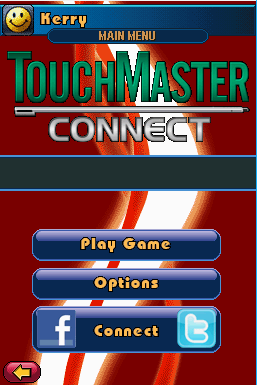
- From the TouchMaster Connect main menu, tap Connect
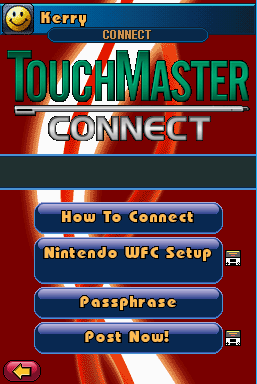
- Tap Nintendo WFC Setup
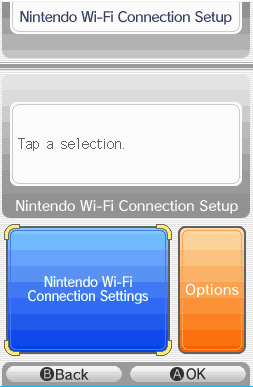
- Tap Nintendo Wi-Fi Connection Settings
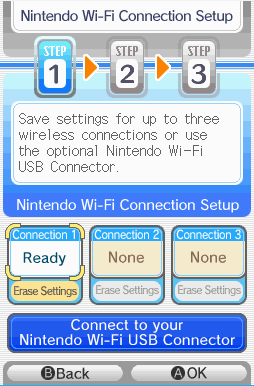
- Select an existing connection, or an unused one if you don't have one set up yet
- Scroll down and set Auto-obtain DNS to No, then enter your Primary and Secondary DNS as below
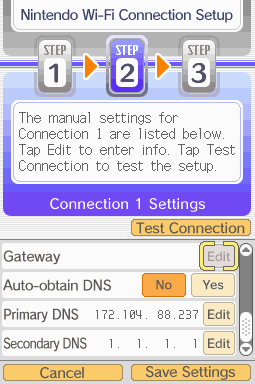
- Primary DNS:
172.104.88.237 - Secondary DNS:
1.1.1.1or8.8.8.8- don't leave this blank, the console needs a real secondary server here - Tap Save Settings
- Tap Back twice to return to TouchMaster Connect
On melonDS
- Config → Wifi settings
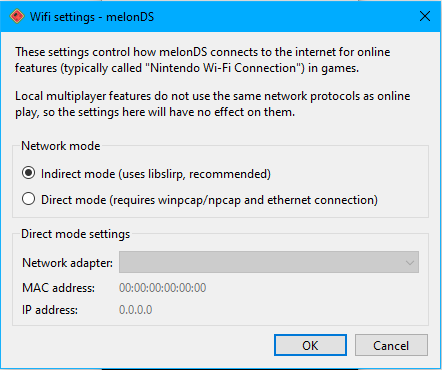
- Select Indirect mode (uses libslirp, recommended) - this is usually already selected by default, so you likely don't need to change anything here
- In-game, go to the Nintendo Wi-Fi Connection settings screen
- Turn off Auto-obtain DNS and enter
172.104.88.237as the primary DNS server, and1.1.1.1or8.8.8.8as secondary
3. Create an account and get your passphrase
- Sign up here with a username, email, and password
- Pick a player icon - this is what shows next to your name on the leaderboards
- You'll be shown a passphrase once at signup - it's also emailed to you, and you can view it any time by logging in and going to My Account
- Do not share your passphrase with anyone - anyone with it can post scores to your account
If your passphrase is entered incorrectly, the connection will fail - double-check it against your account page and try again.
Entering it on your DS
- From the TouchMaster Connect main menu, tap Connect
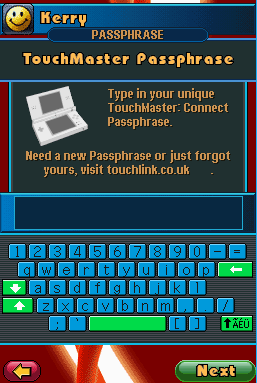
- Tap Passphrase
- Type in your passphrase exactly as shown on the website, then tap Next
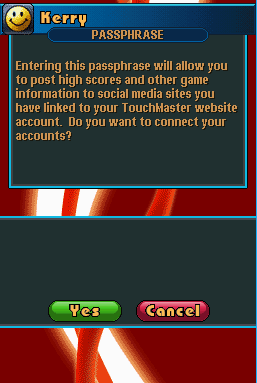
- Tap Yes to connect your accounts
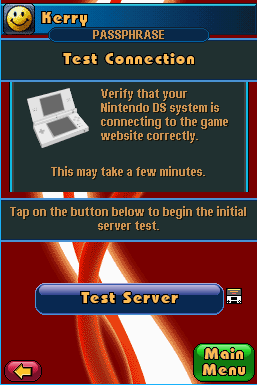
- Tap Test Server
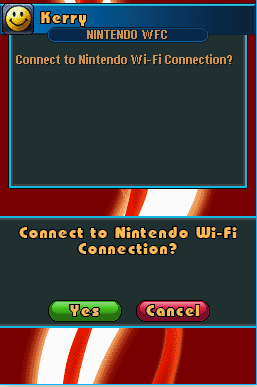
- Tap Yes to connect to Nintendo Wi-Fi Connection
- Once you see this success screen, tap OK - you're connected
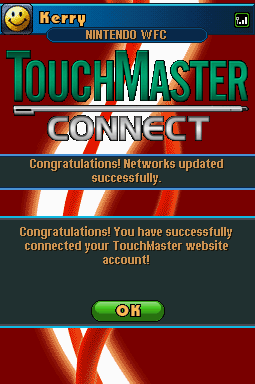
Your console links to your account the first time it successfully connects with the correct passphrase. After that, post a score from any game's results screen and it'll show up on the leaderboards.
Something not working?
Most connection failures come down to one of the two steps above - either the ROM isn't the patched version, or the DNS server isn't set correctly. Double-check both before assuming something's wrong on our end.